
Your Wi-Fi Drops Aren’t Random
https://www.linkedin.com/pulse/your-wi-fi-drops-arent-random-jarryd-de-oliveira-uocee/?published=t
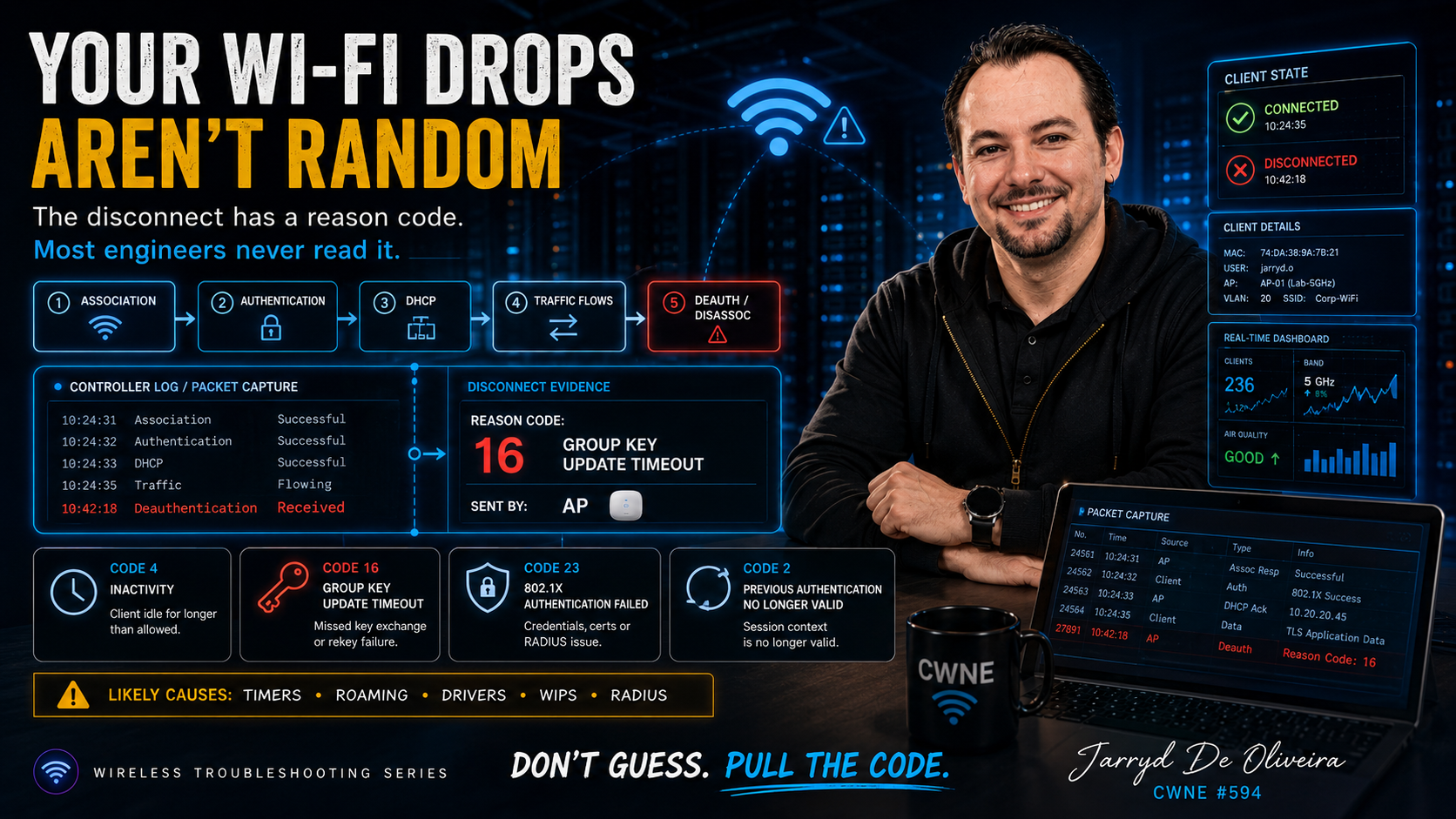
The disconnect has a reason code. Most engineers never read it.
This ticket is a different animal from the ones we have covered so far.
The client joins perfectly.
Authentication succeeds. It gets an IP address. Traffic flows.
Then, seconds or minutes later, it is kicked off.
Sometimes it happens once an hour. Sometimes every ninety seconds. Sometimes it affects one device, in one corner of the building, on one particular day of the week.
The instinct is to call it a coverage problem and start looking at signal strength.
But a client that connects cleanly and then drops is often not a coverage problem.
Coverage problems usually prevent a client from connecting in the first place, or cause performance to degrade as it reaches the edge of a cell. They do not normally admit a client, pass traffic successfully, and then remove it at a repeatable interval.
When a session ends like that, something usually ended it.
One side sent a deauthentication or disassociation frame, or a timer expired somewhere in the process.
And here is the part that can save hours of troubleshooting:
That termination carries a reason code.
The network is telling you why the client was disconnected.
Most engineers never look.
Stop guessing. Pull the code.
You can usually get the reason code from one of two places.
The first is the controller or AP logs, where most enterprise wireless platforms record deauthentication and disassociation events along with the associated reason code.
The second is a frame capture, where the deauthentication or disassociation frame carries the code over the air.
Either way, before changing a single setting, get the code.
Two pieces of information matter:
What does the code say?
And who sent it?
A disconnect sent by the AP and one sent by the client lead to very different investigations.
If the AP removed the client, start looking at policy, timers, security, capacity, or infrastructure behaviour.
If the client left on its own, look at drivers, power-saving behaviour, roaming logic, or the device deciding that another connection looked better.
The symptom may look identical to the user.
The fix will not be.
The codes worth knowing
You do not need to memorise the entire reason-code table. A small number appear repeatedly in real troubleshooting.
Code 4: Inactivity
The AP timed the client out because it stopped communicating. This is common with devices that sleep aggressively, or where idle timers are shorter than the client’s power-saving behaviour.
Code 5: AP unable to handle additional clients
The AP is unable to service the client, often due to capacity or resource constraints. That is a capacity conversation, not simply an RF coverage problem.
Code 15: Four-way handshake timeout
The client did not complete the security handshake in time. Possible causes include an incorrect passphrase, driver instability, packet loss during the exchange, or an interoperability issue.
Code 16: Group key update timeout
This is a classic cause of repeatable disconnects. The network rotates the group key, the client fails to complete the update, and the session is terminated.
A short rekey interval combined with a poor client driver can produce the familiar “drops every hour on the hour” pattern.
Code 23: IEEE 802.1X authentication failure
Now the investigation moves towards RADIUS, certificates, credentials, supplicant behaviour, and authentication policy rather than RF.
Code 2: Previous authentication no longer valid
This is often seen around roaming, key caching, session state, and authentication context problems.
Six codes.
Between them, they cover a significant proportion of connects-then-drops tickets, and each points towards a different layer.
That is the value.
The reason code performs the first stage of triage for you.
The usual suspects behind the codes
Once you have the code, the root cause is often one of a relatively short list.
Timers set too tightly
Group key rekey intervals, EAP reauthentication periods, session timeouts and idle timers are all deliberate disconnect mechanisms.
Each one also interacts with client behaviour.
A rekey interval that causes no problems for modern laptops may be disastrous for a warehouse scanner running an old wireless driver.
DHCP problems beneath a healthy Wi-Fi session
Sometimes the wireless association remains intact while the IP configuration underneath it fails.
From the user’s perspective, the Wi-Fi has dropped.
From the AP’s perspective, the client is still connected.
Check DHCP lease duration, renewal behaviour, duplicate addresses and gateway reachability before blaming the radio.
Aggressive band steering
The infrastructure may be trying to encourage a client onto a different band, while the client handles that steering poorly.
To the user, it looks random.
In reality, it was a policy decision.
Roaming interactions
Everything from the previous roaming article applies here.
A bad roam and a disconnect are often the same event described from two different perspectives.
The user says the Wi-Fi dropped.
The infrastructure says the client moved, failed to complete the transition, and had to reconnect.
Driver instability
This remains one of the most common causes and one of the least glamorous.
When one model of device drops while the rest of the estate remains stable, the client driver should be near the top of the suspect list.
WIPS containment
And then there is my favourite war story: wireless intrusion prevention.
A WIPS platform containing a genuine rogue AP is doing exactly what it was designed to do.
A WIPS platform misclassifying your own infrastructure, a neighbouring network, or a legitimate device and then transmitting deauthentication frames is a self-inflicted outage.
I have seen sites chase “random drops” for days when their own security platform was actively disconnecting their clients.
The reason codes and source MAC addresses told the whole story in a single capture.
Your security tooling belongs on the suspect list.
It does not get a free pass because it is yours.
The method
The troubleshooting sequence for a connects-then-drops ticket is straightforward.
First, confirm the pattern.
Is the interval regular or genuinely random?
Does it affect one device or many?
One area or the entire site?
One SSID, one AP, one band, one operating system or one device model?
The scoping questions from episode one still apply.
Next, pull the reason code from the controller logs or a frame capture.
Then identify who sent the disconnect.
Map the code to the layer it points towards and investigate that layer.
Finally, verify the fix for longer than the original failure interval.
If the client previously dropped every hour, a twenty-minute test proves nothing.
A fix that has not survived the rekey, reauthentication, idle or session timer has not yet been proven.
There is no guessing in that sequence.
Just evidence.
Final Thoughts
A client that connects and then drops is not suffering from bad luck.
It may not be suffering from bad coverage either.
Something ended the session, and in many cases, that something left a note.
Pull the reason code.
Check who sent it.
Let that evidence point you towards the correct layer, in the same way that scope pointed you towards the correct layer in episode one.
The engineers who resolve these tickets quickly are not necessarily the ones with the best intuition.
They are the ones who read the note.
This is part of an ongoing wireless troubleshooting series, building on the opening article on triage: scope the problem first, then work the layer the symptom actually points towards.
Jarryd De Oliveira, CWNE #594
No Comments