
Upgrade Ruckus AP via SSH/FTP
Introduction
Should you have an issue upgrading a Ruckus AP's firmware via Web GUI, you can upgrade alternatively by using a combination of an SSH session and an FTP Server.
Putty - SSH Software: https://www.chiark.greenend.org.uk/~sgtatham/putty/latest.html
MobaXterm - FTP Software: https://mobaxterm.mobatek.net/download-home-edition.html
Method (Stage 1)
Start your FTP server. For the purpose of this document, we will be using MobaXterms FTP server.
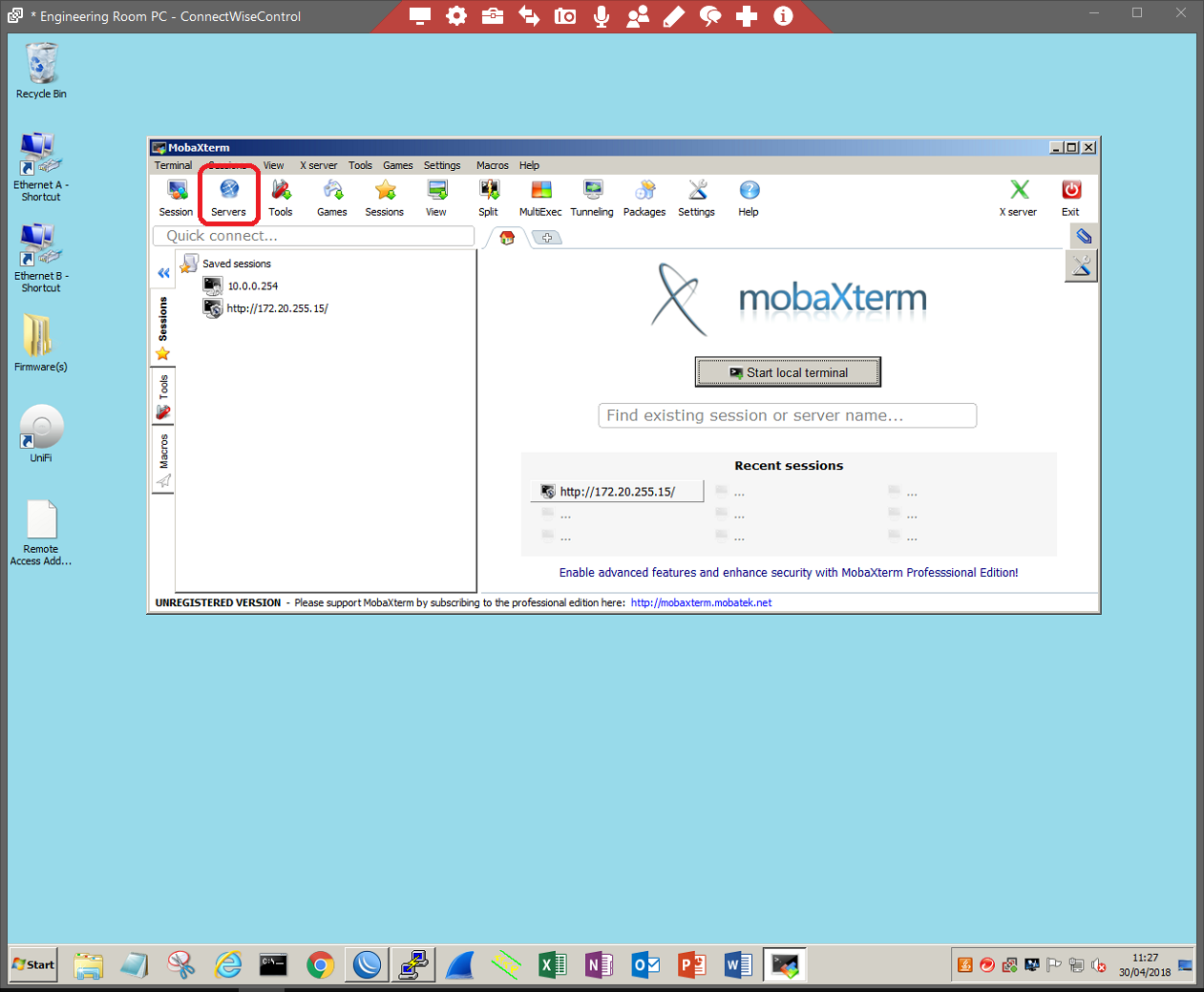
Edit the FTP server by clicking the TOOLS icon.
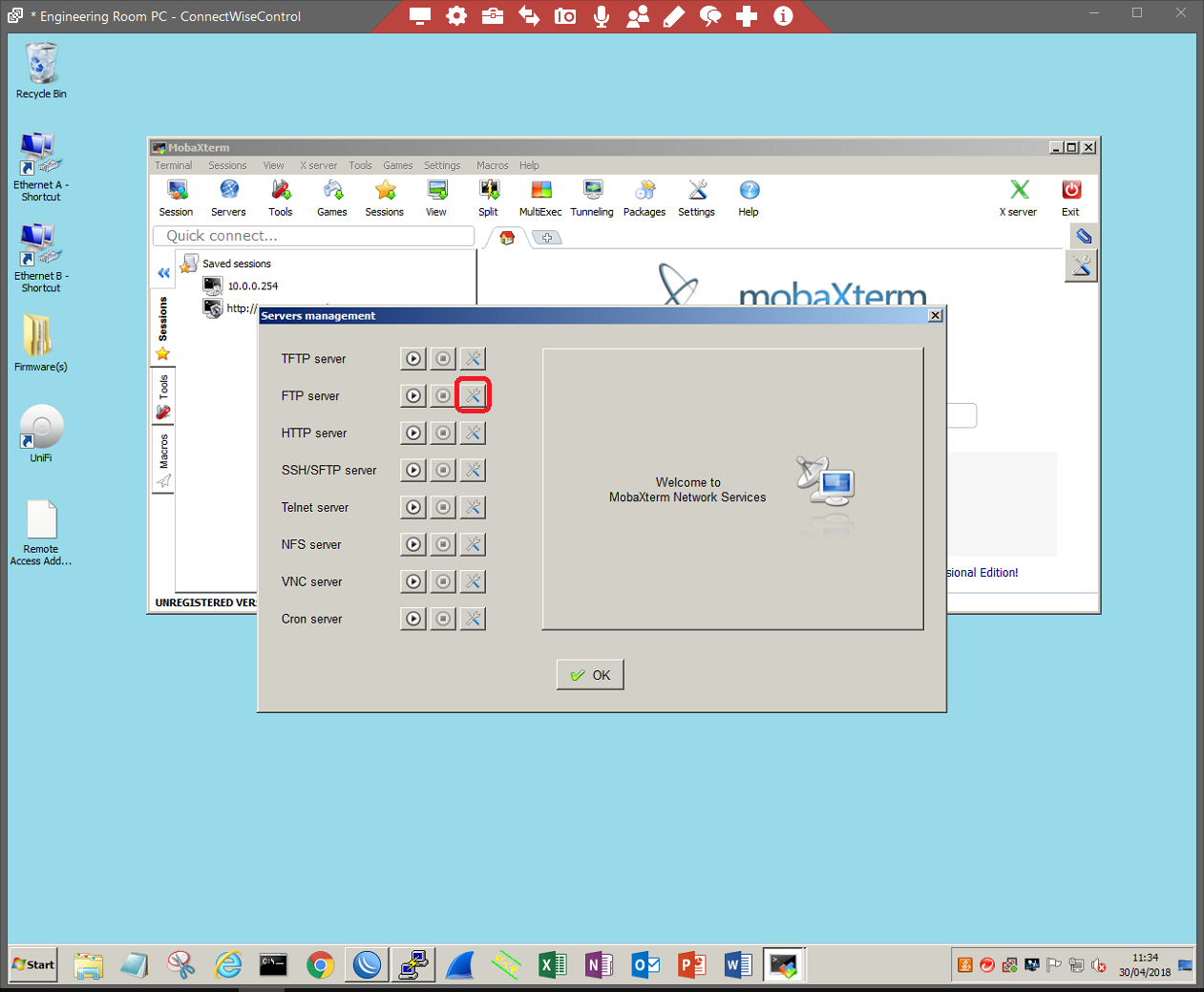
Select the location of the file (the desktop in this case), username, and password, and leave the port number as default (21). Click 'OK' to confirm the settings.
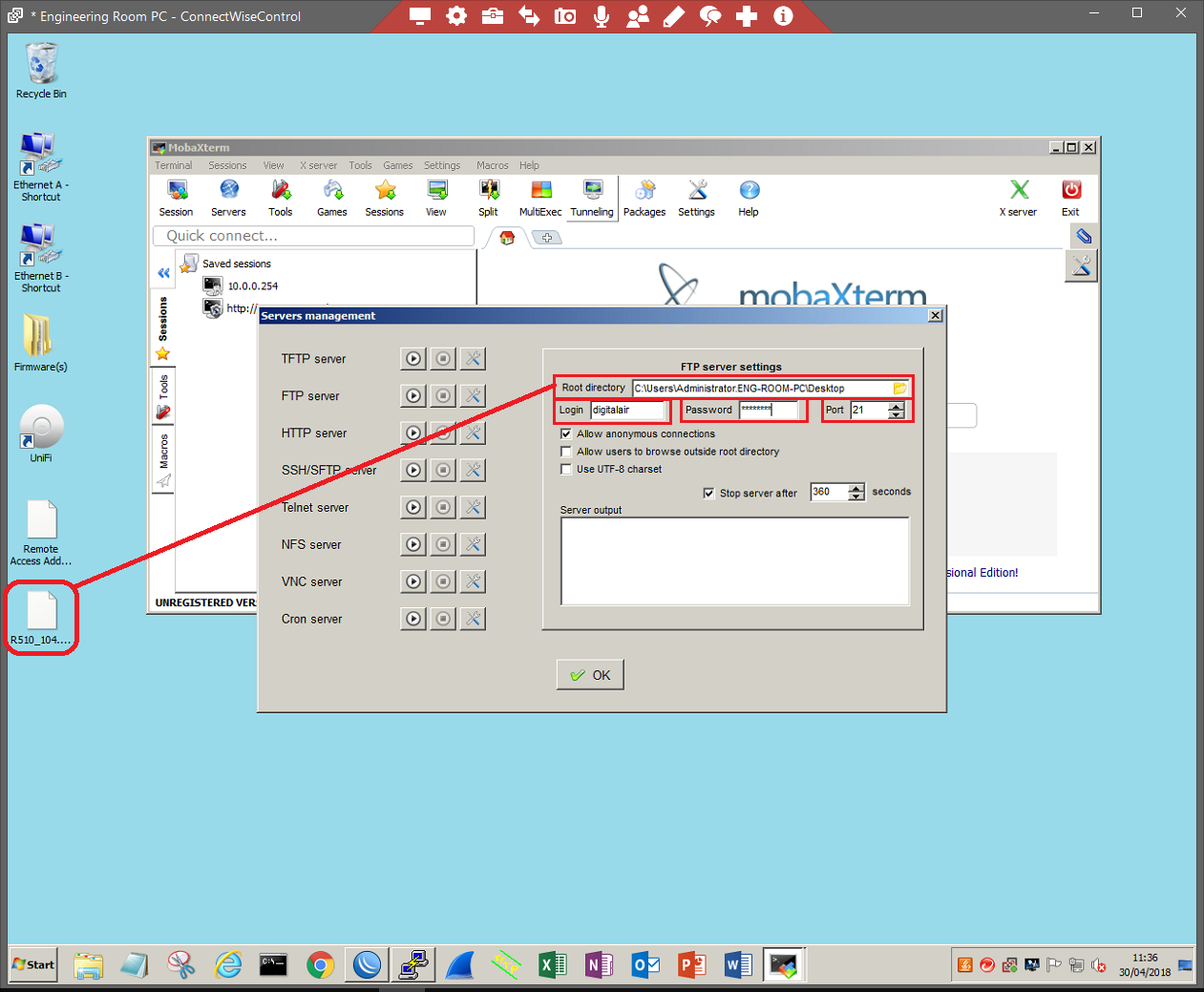
Open the server again and click the PLAY/START button to start the server.
Method (Stage 2)
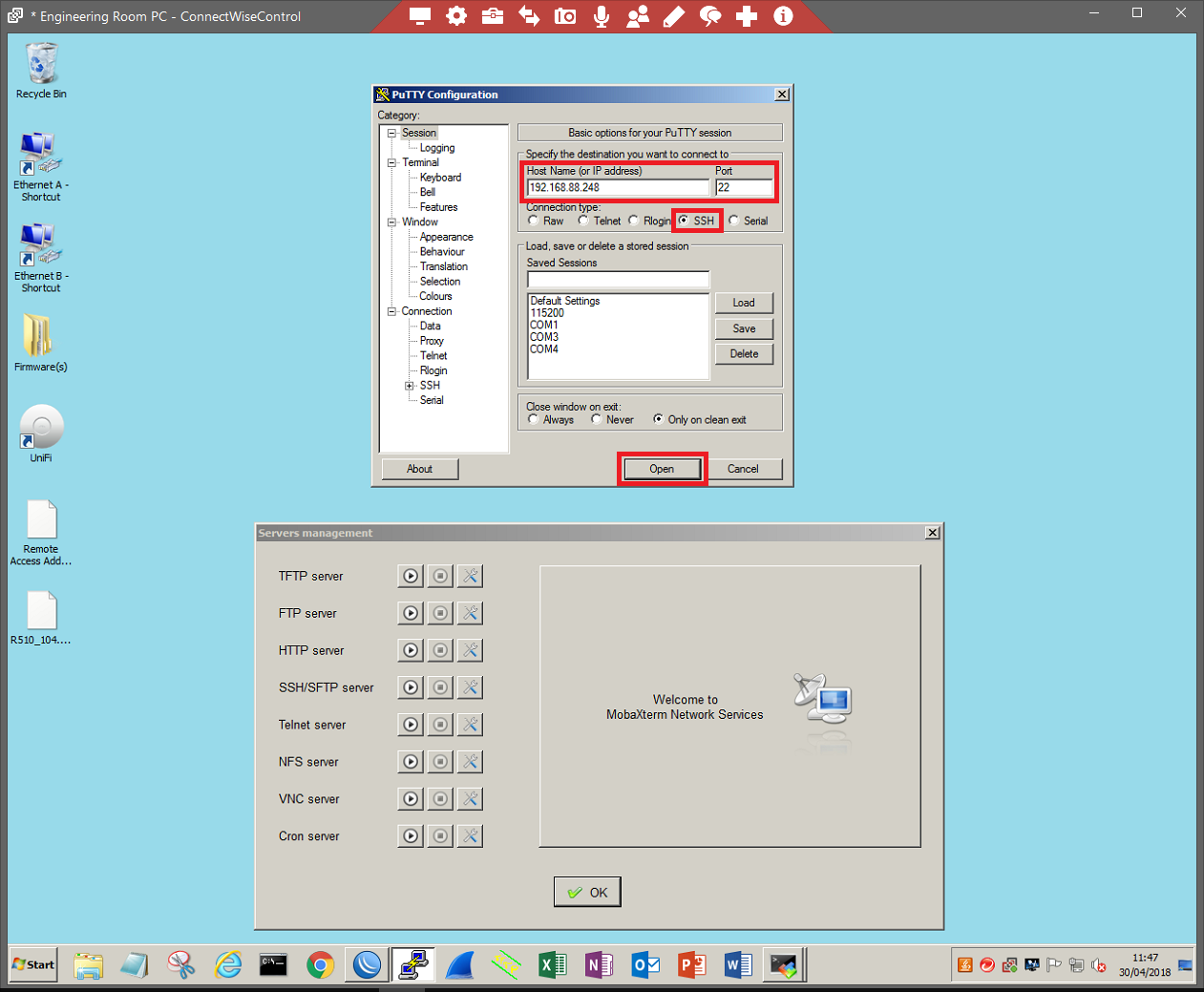
SSH into the AP using Putty. Use the IP address of the Access Point in the 'Hostname (or IP address)' section. Ensure that you are using port 22 and that SSH is selected. Click 'Open' to begin the connection.
Log in with the Access Points username and password.
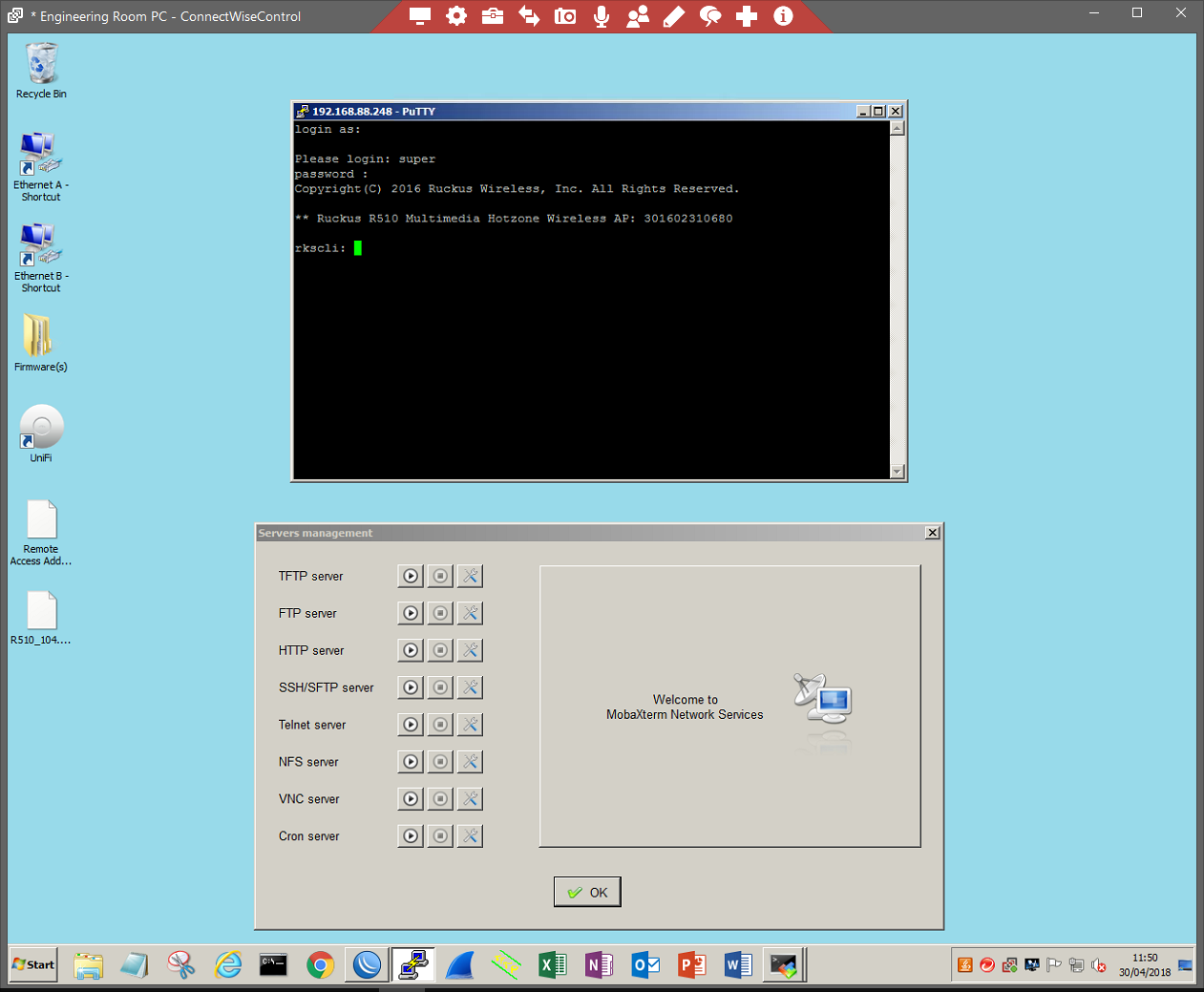
This will either be default or defined by the administrator. Once logged in use the following command to begin the upgrade process:
fw set control FILENAME INCLUDING EXTENSION
fw set proto TRANSFER PROTOCOL METHOD
fw set port PORT NUMBER
fw set host IP ADDRESS/HOSTNAME OF FTP SERVER
fw set user SERVER USERNAME
fw set password SERVER PASSWORD
fw up
For example;
fw set control R510_104.0.0.0.1347.bl7
fw set proto ftp
fw set port 21
fw set host 192.168.88.254
fw set user username1
fw set password password1
fw up
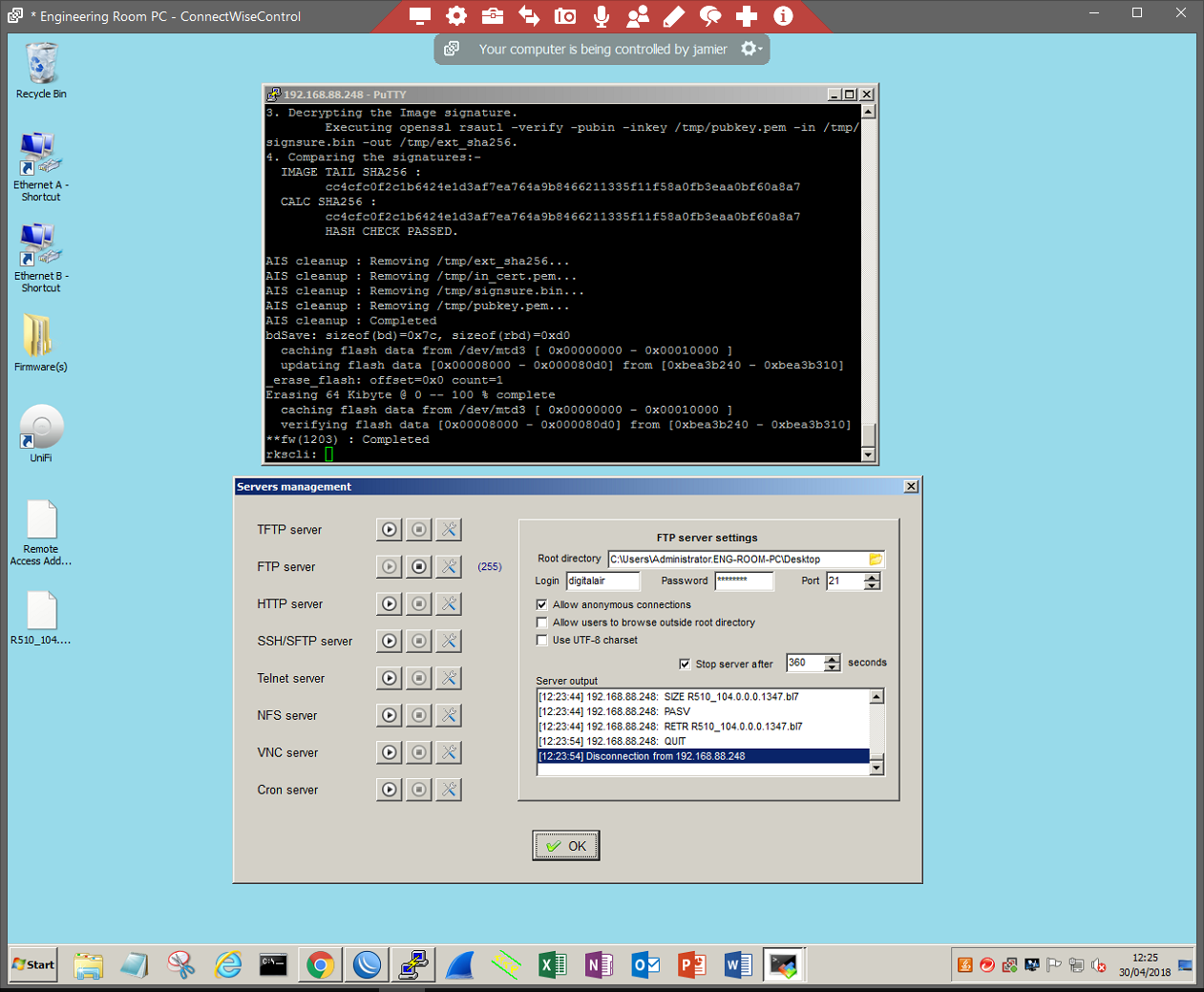
Once successful you will receive a 'Completed' status. You must now reboot the AP by typing 'reboot' no quotes and pressing enter to confirm.
Once booted, confirm your work by typing 'get version' no quotes to ensure that the file is successfully uploaded/updated.
No Comments