
How to Configure and Optimise SmartRoam on vSZ
Introduction
Some clients do not roam even if they are physically moved to a new location. Not all clients have roaming aggressiveness setting to fine-tune roaming. Apple devices are reported to cling to the AP they first learn an SSID on.
In a multi-AP environment, a client will always be looking for the best AP to connect to. It will remain connected to its current AP and roam to an adjacent AP once the signal level falls below a certain threshold. This behavior ensures best possible performance at all times.
To achieve this, a client must be doing background scanning to learn about its environment. Frequency of this background scan can determine the roaming behavior. Certain clients such as Windows clients allow roaming aggressiveness to be tweaked. "High" setting will make the client to perform background scanning more often to learn about available APs to connect. While the "Low" setting will make the client do less frequent scanning. This setting can be found under the wireless adapter properties.
Unfortunately, this tweaking is not readily available for all client types. For example, various smartphones and Apple clients do not provide this setting to encourage roaming.
For these types of clients, it is obvious to look towards infrastructure for help. Ruckus has added firmware support to disconnect a client if its signal falls below the user-definable threshold. This feature is called SmartRoam. With this feature, there will be an explicit disassociate message to kick off the client.
Method
This is a per-SSID setting as illustrated above. "smart-roam" parameter takes values from 1 to 10.
These are called roam factors, and they map to an RSSI value in dB as per the list below:
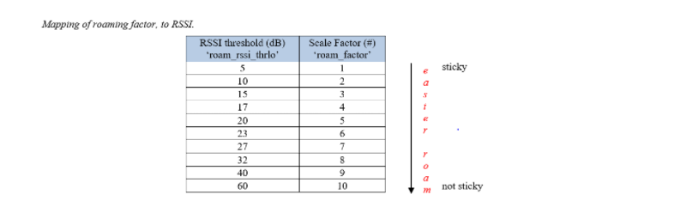
The configuration can be changed from the CLI of the SmartZone.
config
domain "Domain Name"
zone "Zone Name"
wlan "WLAN Name"
roam
roam-factor 2.4g x
roam
roam-factor 5g x
Red writing indicates a value that will be unique to your configuration. Note also that the quotes are required for parameters within a partner domain.
Additionally, if you enable DB Persistence event 209/218 on the vSZ you can see the system logs (events) for roaming activity.


No Comments