
Upgrading ICX Firmware via USB
Introduction
Following best practices and for some features to work the firmware of the ICX switches must be upgraded for mostly all scenarios. This guide serves as a step-by-step guide to upgrading the firmware.
You will need:
- ICX Switch
- PC/Laptop
- USB
- Console Cable
- Ethernet Cable
- Firmware image
Method
It is highly recommended you follow the Initial/Basic Setup of an ICX Switch guide.
This will give you access to the switch which you may find easier to understand the upgrade process.
For the purpose of this guide, I shall start the procedure assuming that the initial setup has been completed.
Step 1)
Download and extract the software required.
Downloads can be found here: https://support.ruckuswireless.com/software N.B. you will need Ruckus credentials to obtain the software.
Step 2)
Copy the firmware to the USB root directory.
Step 3)
Start by powering up the switch, and connect a serial cable to the console port on the switch.
Once this connection has been made to the switch, a command-line interface (CLI) session can be initiated via a terminal emulation program such as PuTTY (www.putty.org).
When PuTTY is started, use the following settings to connect via serial interface:
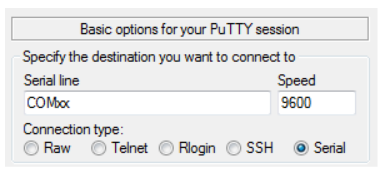
Select Serial
Speed: 9600
Serial line: COMxx
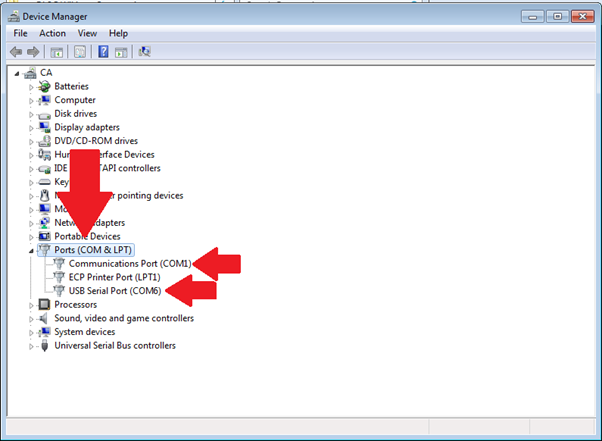
xx being the COM port your device is connected to.
To find which COM port. Open Device Manager under Ports it will be listed USB Serial Port(COMxx)
Once connected to the switch, the interface will present a console prompt.
Step 4)
Plug the USB into the ICX switch
Step 5)
The following commands will copy the firmware to Primary and then to secondary
- ICX5150-24P Switch# Copy disk0 flash SPSxxxxxdufi.bin primary
Note xxxxx is the firmware version.

(When completed you should get a Flash Done message)
- ICX5150-24P Switch# Copy disk0 flash SPSxxxxxdufi.bin secondary
Note xxxxx is the firmware version.

(When completed you should get a Flash Done message)
Once the firmware is completed you need to reboot the switch for changes to come into effect. Type the command:
Reload
You will be asked if you are sure of doing so, confirm it by typing:
Y
Step 6)
Log into the switch. Once logged in check the firmware version.
Show version or abbreviated to sh fl
If the bootroms do not match enter the following commands
copy fl fl following by primary or secondary depending on which bootrom partition has not updated.
For example
copy fl fl primary
(this will update the primary bootrom image with an image from the bootrom secondary partition)
No Comments