Full Bars. No Internet.
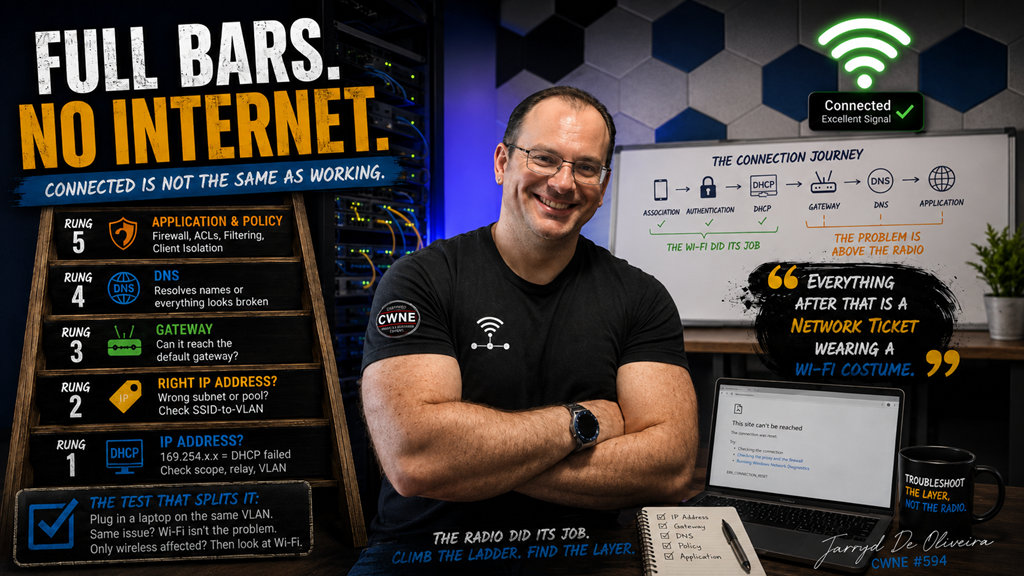
Connected is not the same as working. The Wi-Fi did its job. The problem is above it.
This is the ticket that makes users angriest.
Full signal bars. Connected to the correct SSID. The little Wi-Fi icon looking perfectly healthy.
And nothing loads.
The user blames the Wi-Fi because the Wi-Fi is the part they can see.
But here is the uncomfortable truth for anyone about to spend an hour staring at RF dashboards:
If the client associated cleanly and authenticated successfully, the wireless network has largely done its job.
Association is only part of the journey.
Back in episode one, we walked through the connection path:
Association. Authentication. DHCP. Gateway. DNS. Application.
A client showing full bars and a connected status has passed the first stages.
The failure is probably above the radio.
Which means this ticket is not really a wireless investigation.
It is a ladder.
And you climb it from the bottom.
Rung one: did the client actually get an IP address?
Before touching the infrastructure, look at the client’s own network configuration.
IP address. Subnet mask. Default gateway. DNS servers.
Those four values will often tell you most of the story before you log into a controller, switch, or firewall.
The first thing to look for is the classic tell: a self-assigned 169.254.x.x address.
That means DHCP never completed.
The client asked for an address, nobody replied, and it assigned itself an address that will not take it beyond the local link.
When you see one, the suspect list is usually short:
-
The DHCP scope is exhausted.
-
The DHCP relay or IP helper is missing or incorrect for that VLAN.
-
The VLAN is not tagged across the trunk carrying the SSID.
-
The SSID is mapped to the wrong VLAN.
-
DHCP traffic is being blocked somewhere along the path.
Notice that none of those is an RF problem.
Rung two: is it the right IP address?
Sometimes the client gets an address, but it is the wrong one.
The wrong subnet. The wrong pool. An address from the guest range while connected to the corporate SSID, or the other way around.
That usually points towards the SSID-to-VLAN mapping, an incorrect native VLAN, or a switching configuration carrying traffic somewhere it should not.
This one often appears after a change.
A new AP or switch goes in. One SSID works, another does not. The difference turns out to be a VLAN that was never added to the new switch port or trunk.
The AP is innocent.
The trunk configuration is not.
Rung three: can it reach the gateway?
The client has a sensible IP address.
Now test the default gateway.
If the gateway cannot be reached, the problem is likely sitting in Layer 2 or Layer 3:
VLAN membership. Trunking. Switching. ARP. Routing. Security policy between the client and its gateway.
Some gateways will not respond to ICMP, so a failed ping is not absolute proof by itself. Check whether the client can resolve the gateway’s MAC address and whether other traffic can reach it.
If the gateway is reachable, the local network path is probably working.
Keep climbing.
Rung four: DNS
Here is a line worth remembering:
“The internet is down” is often just DNS.
The client can reach the gateway. It may even be able to reach the outside world by IP address.
But it cannot resolve names.
From the user’s point of view, everything is broken.
Check which DNS servers the client was actually given.
Then check whether those servers are reachable from that VLAN.
Internal resolvers that work perfectly from the corporate network may be unreachable from a guest or IoT segment, either by design or by accident.
A manual lookup against the assigned DNS server helps confirm whether it is responding correctly.
Testing a known public resolver can split the problem further. If the public resolver works but the assigned resolver does not, you have found the failing layer.
Just remember that some environments intentionally block direct access to external DNS services, so interpret the result in the context of the network design.
Rung five: the application and the policy
The client has an IP address, reaches the gateway, and resolves names.
Something still does not work.
Now you are in application and policy territory.
Firewall rules. ACLs between VLANs. Proxy configuration. Web filtering. Captive portals. Certificate inspection. Application-specific ports.
And one that catches people constantly: client isolation.
Client isolation deliberately prevents wireless clients from communicating directly with each other.
On a guest network, that is often exactly what you want.
But it is also the answer to a whole family of confused tickets:
“I can’t find the printer.”
“Casting doesn’t work.”
“The app can’t discover the device.”
Nothing may be broken.
A policy could be doing exactly what it was configured to do, on an SSID where somebody did not expect it.
Before troubleshooting a discovery problem as a fault, check whether isolation was part of the design.
Also remember that some discovery protocols, such as mDNS, do not naturally cross VLAN boundaries without a gateway or service designed to relay them.
The test that splits the problem in half
Episode one had the temporary open SSID.
This ticket has its own version of the same idea:
Test from a wired port on the same VLAN.
Place a laptop on a switch port assigned to the same VLAN as the SSID.
If the wired client experiences the same problem, wireless was probably never the issue.
You have just saved yourself hours of RF investigation.
The fault is likely in DHCP, switching, routing, DNS, firewall policy, or an upstream service, and it would affect any client using that segment.
If the wired client works and only wireless clients are affected, the wireless path deserves a closer look.
Check the AP’s switch port, VLAN tagging, tunnelling or local breakout configuration, SSID mapping, access policies, and any wireless-specific isolation settings.
One test.
The problem space cut in half.
A war story about Monday mornings
My favourite version of this ticket is the guest network that works perfectly in the morning and falls over by lunchtime.
Every day.
Like clockwork.
The cause was a DHCP scope designed for a quiet office, combined with long lease times on a guest network used by hundreds of phones each day.
Every device that walked through the door consumed a lease.
Those leases remained allocated long after the users had left.
By midday, the pool was empty. Every new device received a self-assigned address and generated a complaint ticket.
Nobody had touched the wireless infrastructure in months.
The wireless was fine.
A larger address pool and shorter guest lease times fixed a “Wi-Fi problem” that had never been a Wi-Fi problem.
Check lease duration against how long clients actually remain on the network.
A guest lease measured in days can become a pool exhaustion event running on a timer.
The method
The sequence is short, and the order matters.
Start with the client’s own configuration:
IP address. Subnet mask. Default gateway. DNS servers.
Those values often identify the failing layer before you log into anything.
A 169.254.x.x address?
DHCP never completed. Check the scope, relay, VLAN, trunk, and any policy blocking DHCP.
A valid address from the wrong subnet?
Check the SSID-to-VLAN mapping and switching configuration.
A valid address but no path to the gateway?
Work through Layer 2 and Layer 3. VLAN membership, switching, ARP, routing, and firewall policy.
The gateway works but names do not resolve?
Investigate DNS.
DNS works but the application still fails?
Look at policy, filtering, proxying, isolation, discovery protocols, and application-specific requirements.
And when the failing layer is unclear, run the wired test and cut the problem in half.
Scope it the same way as always.
One user usually points towards the client.
One SSID, AP group, or VLAN usually points towards mapping, trunking, relay, or policy.
Everyone, everywhere usually points towards shared upstream infrastructure.
Final thoughts
Full bars mean the radio conversation is healthy.
They promise nothing about DHCP, routing, DNS, firewall policy, or the services sitting between the user and the thing they are trying to reach.
Connected is not the same as working.
So when the ticket says, “Connected, but nothing works,” resist the urge to open the RF dashboards first.
Read the client’s network configuration.
Climb the ladder from the bottom.
Let each rung tell you whether to stop or keep climbing.
The wireless network completed its part of the journey at association and authentication.
Everything after that is often a network ticket wearing a Wi-Fi costume.
This is part of an ongoing wireless troubleshooting series, building on the opening article about triage: scope the problem first, then work the layer the symptom actually points towards.
Jarryd De Oliveira, CWNE #594