Access Points
Ruckus Access Points
Ruckus Access Point LED Status
Introduction
This section describes the physical LED status and descriptions of the Ruckus Access Points.
LED Behaviour
If you believe an AP is not operating normally, checking the onboard LEDs can help you determine the AP behavior.
If wireless devices that are connected to your APs are experiencing connectivity issues, check the AP LEDs to determine if your APs are operating normally.
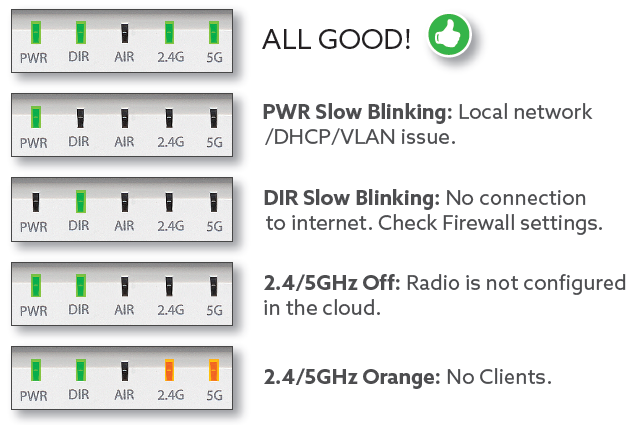
The following table describes the LEDs on the AP, how they behave, and what they mean.
| LED | Color | Description |
|---|---|---|
| PWR | Solid green | The AP has received a local IP address from the DHCP server. |
| Slow flashing green | A local network, DHCP, or VLAN issue has been detected. | |
| DIR or CTL | Solid green | The AP is connected to the cloud controller. |
| Fast flashing green | The AP is obtaining updates from the cloud controller. | |
| Slow flashing green | The AP is disconnected from the Internet. Check your network firewall settings. | |
| 2.4G and 5GHz | Solid green | The network is up and at least one wireless client is associated with it. |
| Solid orange | The network is up, but no clients are associated with it. | |
| Off | The network is down. | |
| AIR | Always off | Not used |
Upgrade Ruckus AP via SSH/FTP
Introduction
Should you have an issue upgrading a Ruckus AP's firmware via Web GUI, you can upgrade alternatively by using a combination of an SSH session and an FTP Server.
Putty - SSH Software: https://www.chiark.greenend.org.uk/~sgtatham/putty/latest.html
MobaXterm - FTP Software: https://mobaxterm.mobatek.net/download-home-edition.html
Method (Stage 1)
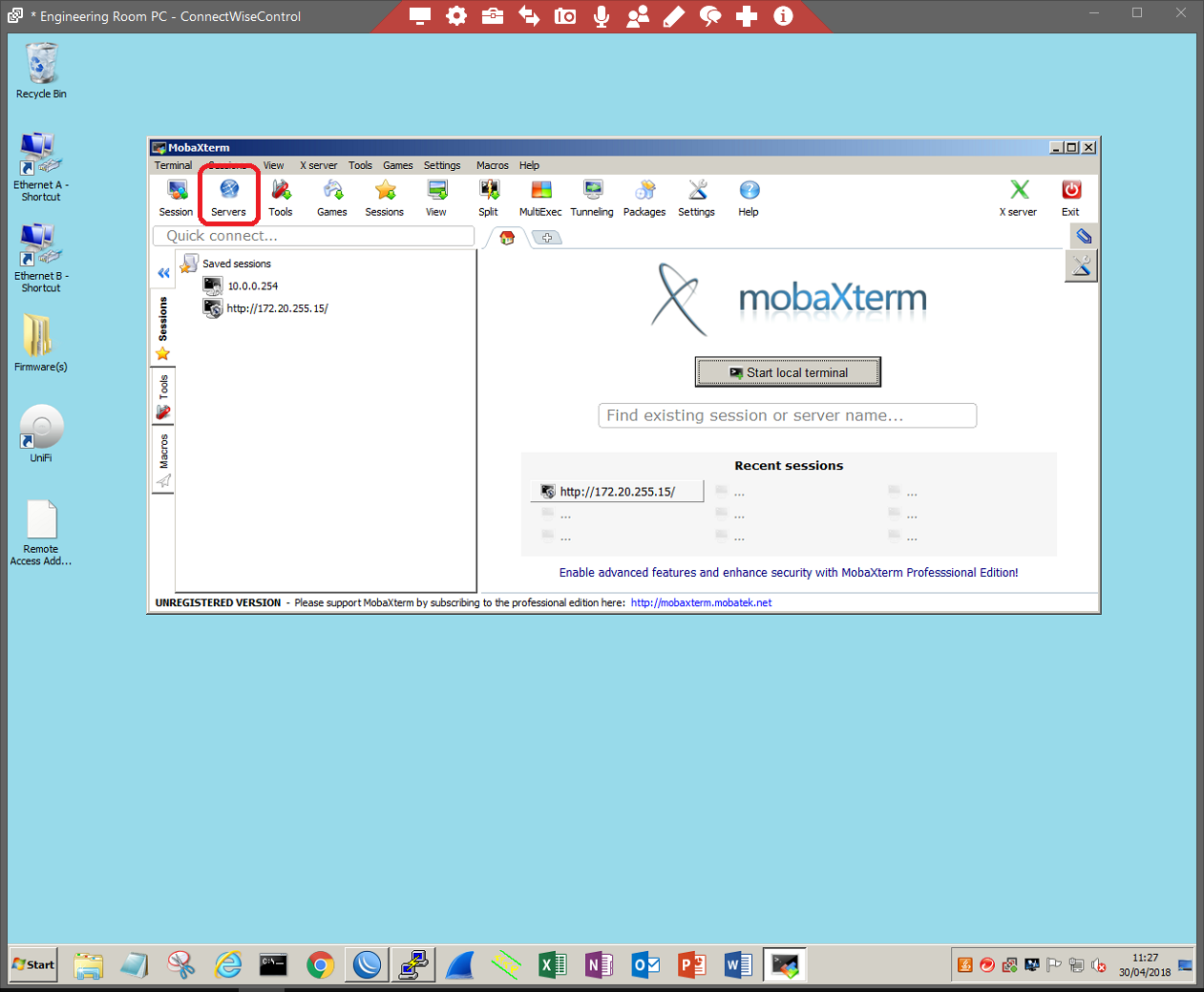
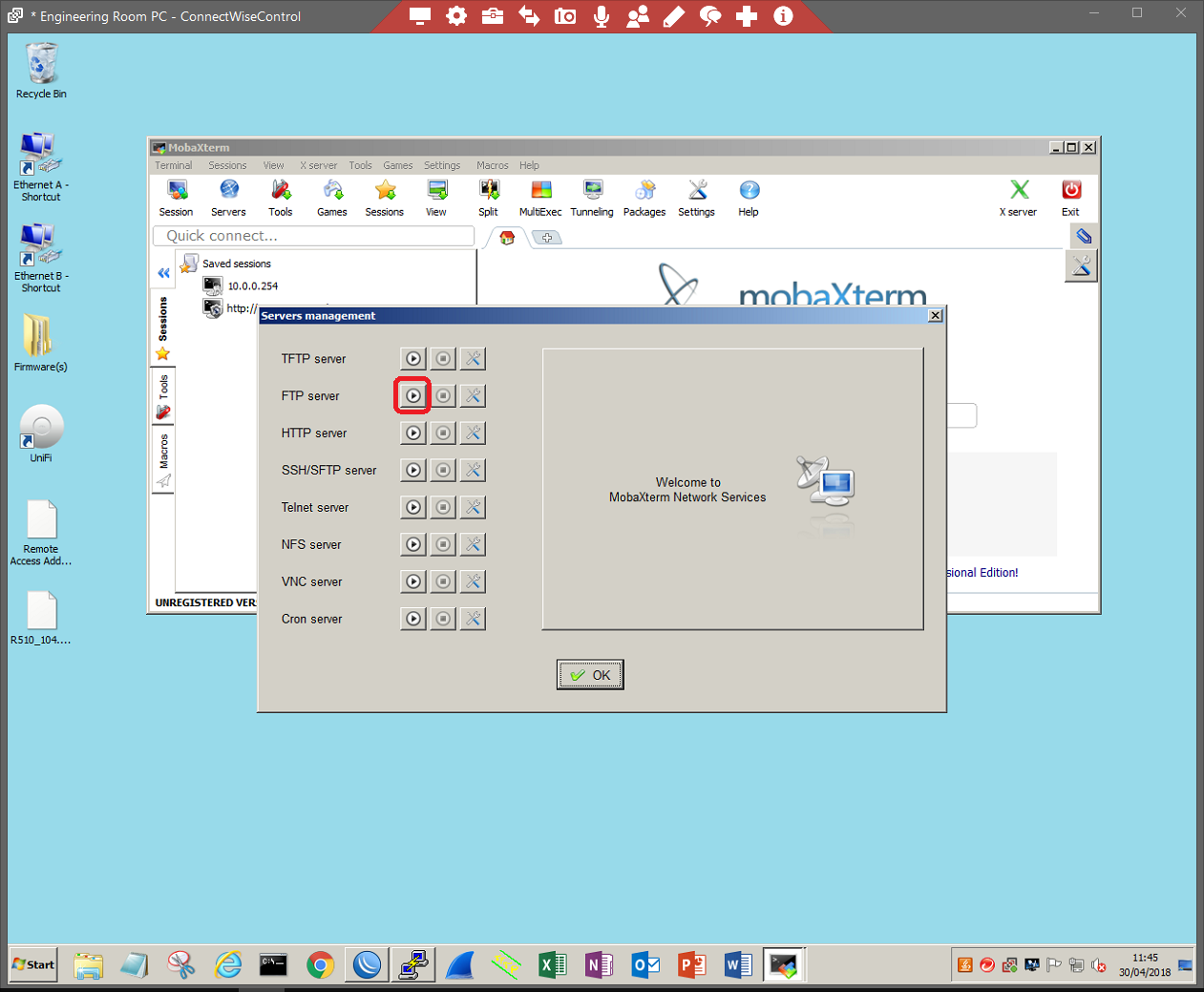
Start your FTP server. For the purpose of this document, we will be using MobaXterms FTP server.
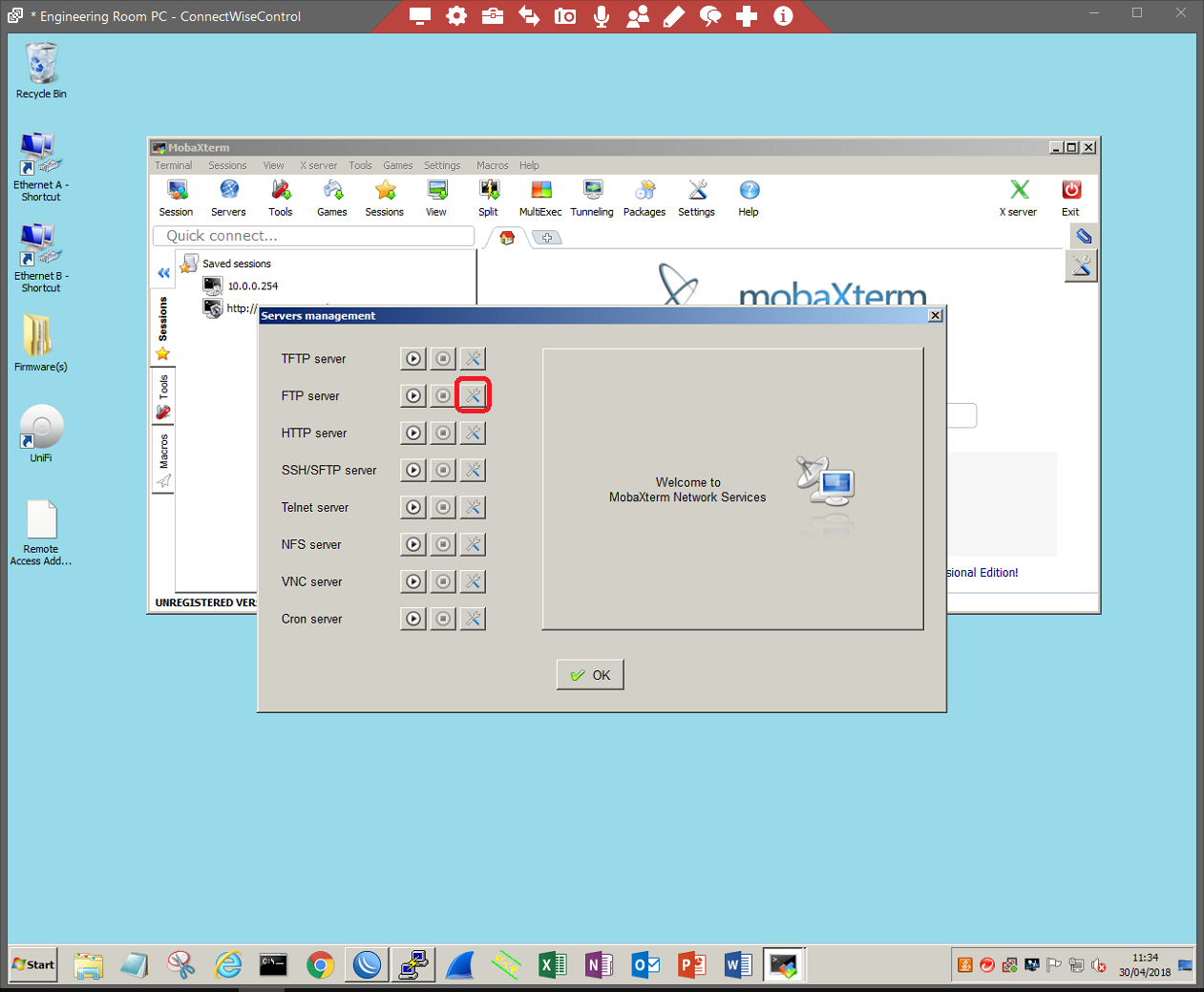
Edit the FTP server by clicking the TOOLS icon.
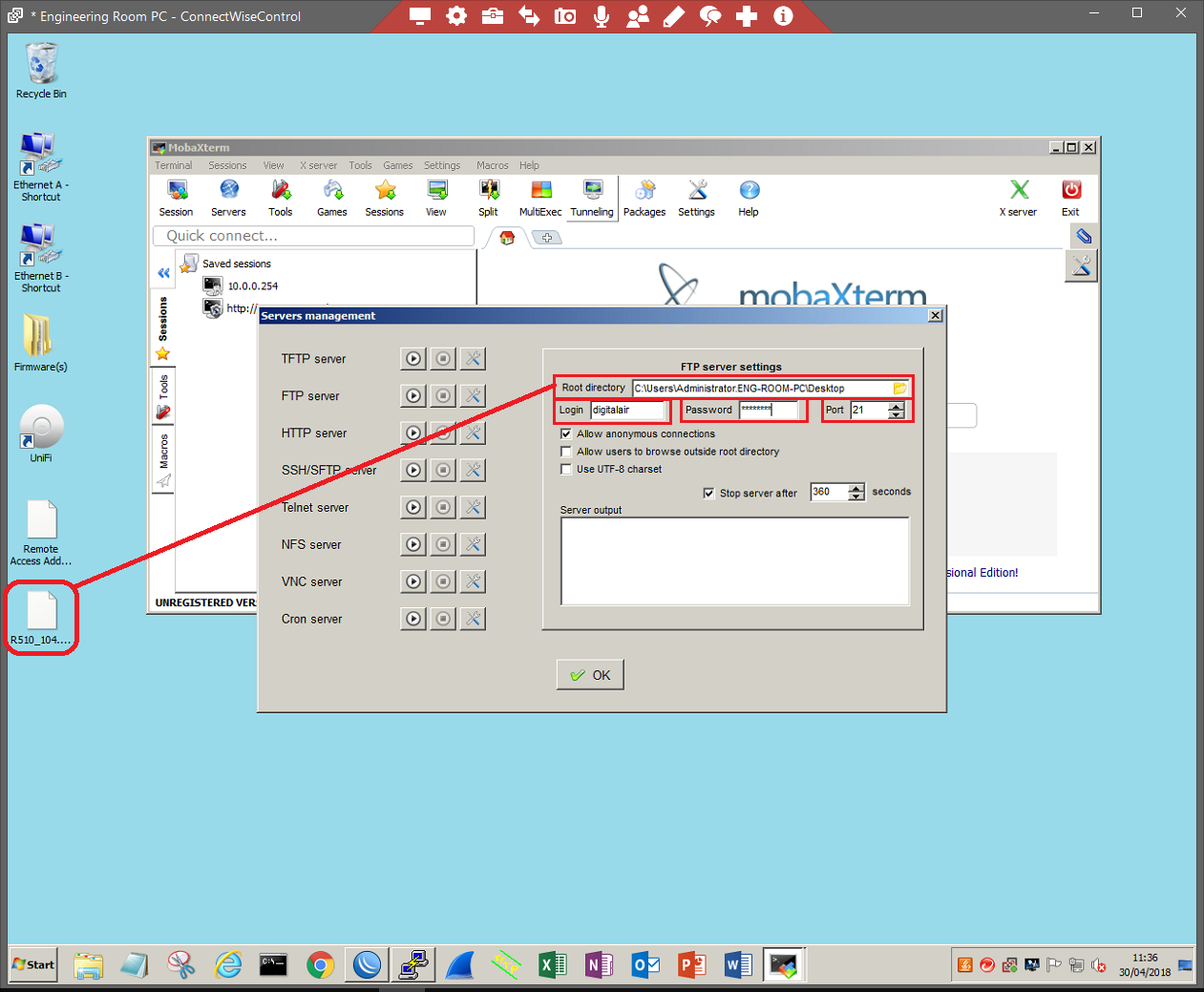
Select the location of the file (the desktop in this case), username, and password, and leave the port number as default (21). Click 'OK' to confirm the settings.
Open the server again and click the PLAY/START button to start the server.
Method (Stage 2)
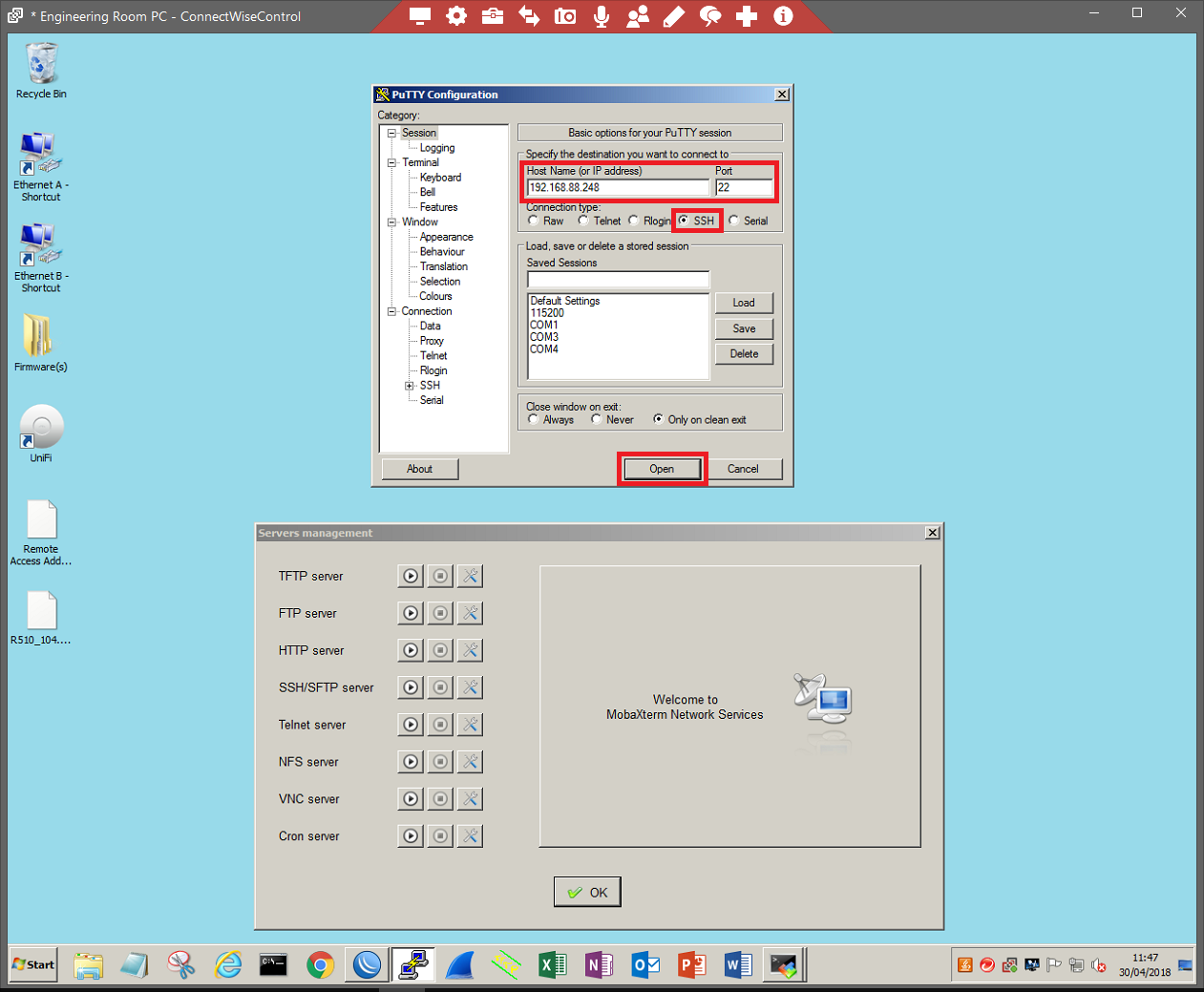
SSH into the AP using Putty. Use the IP address of the Access Point in the 'Hostname (or IP address)' section. Ensure that you are using port 22 and that SSH is selected. Click 'Open' to begin the connection.
Log in with the Access Points username and password.
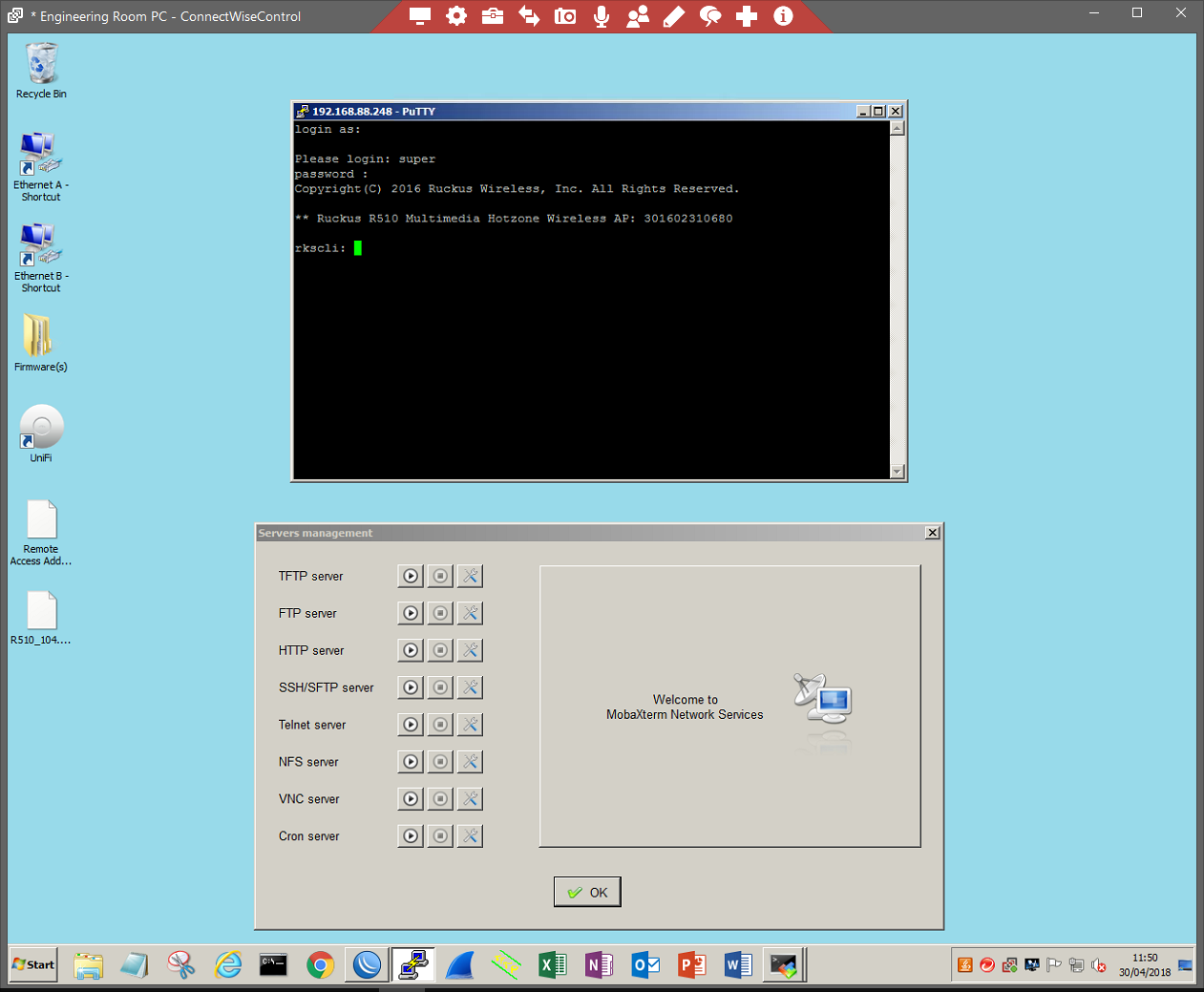
This will either be default or defined by the administrator. Once logged in use the following command to begin the upgrade process:
fw set control FILENAME INCLUDING EXTENSION
fw set proto TRANSFER PROTOCOL METHOD
fw set port PORT NUMBER
fw set host IP ADDRESS/HOSTNAME OF FTP SERVER
fw set user SERVER USERNAME
fw set password SERVER PASSWORD
fw up
For example;
fw set control R510_104.0.0.0.1347.bl7
fw set proto ftp
fw set port 21
fw set host 192.168.88.254
fw set user username1
fw set password password1
fw up
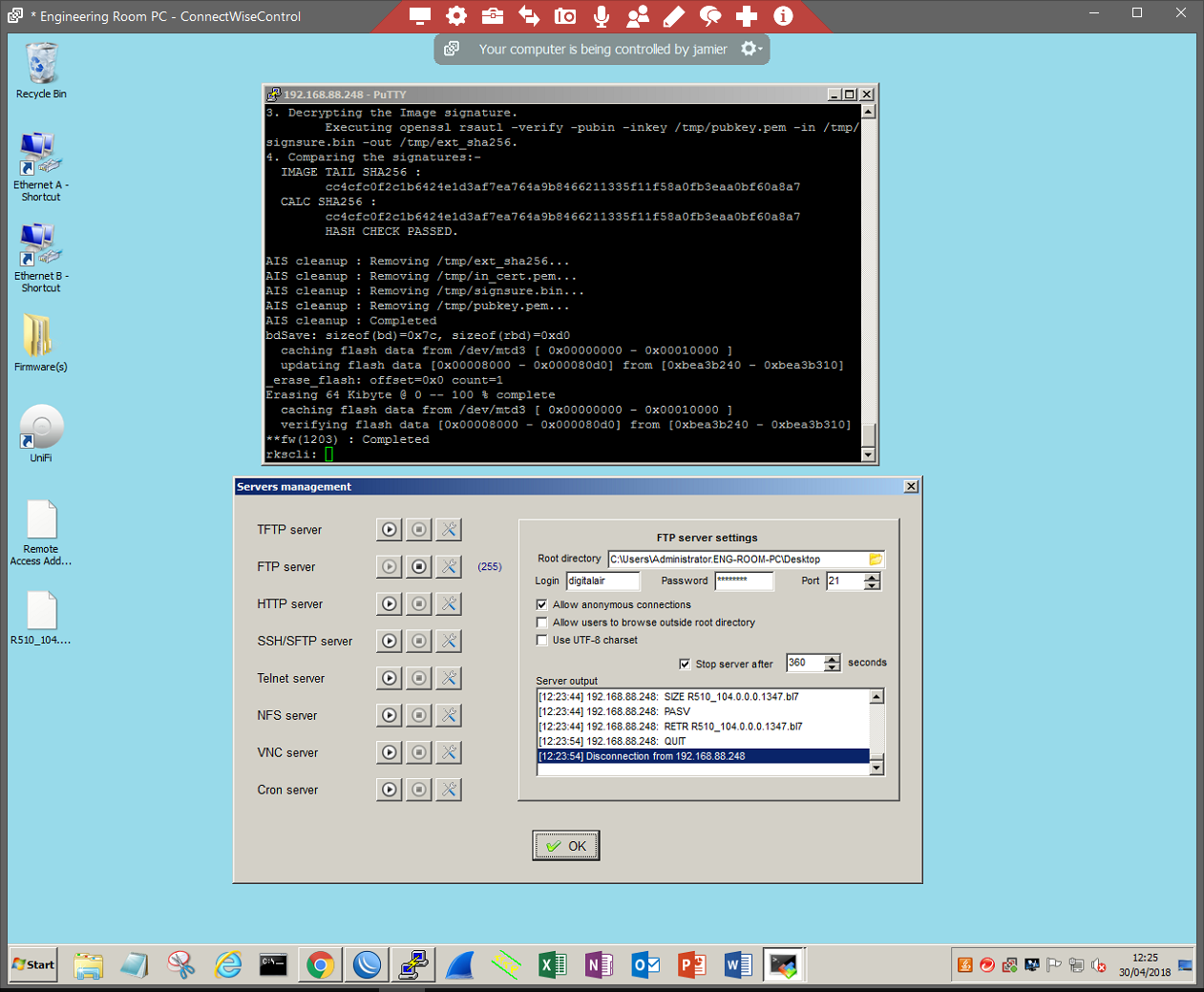
Once successful you will receive a 'Completed' status. You must now reboot the AP by typing 'reboot' no quotes and pressing enter to confirm.
Once booted, confirm your work by typing 'get version' no quotes to ensure that the file is successfully uploaded/updated.
Ruckus T750SE
The RUCKUS T750SE is a high-end dual-band outdoor Wi-Fi 6 AP with external antenna connectors that supports 8 spatial streams (4x4:4 in 5GHz, 4x4:4 in 2.4GHz).
The T750SE provides advanced 802.11ax features including OFDMA and MU-MIMO, and supports up to 1,024 client connections with increased capacity, improved coverage and performance in ultra-high density environments.
The T750SE includes a 2.5 GbE Ethernet PoE+ port for high speed Ethernet backhaul, along with an SFP fiber port for fiber backhaul. Additionally, it includes built-in GPS, USB port, gigabit PoE out port, and IP-67 rated weather proofing.
This section describes the physical features of the RUCKUS Unleashed T750SE AP.
Figure 1. Unleashed T750SE Access Point
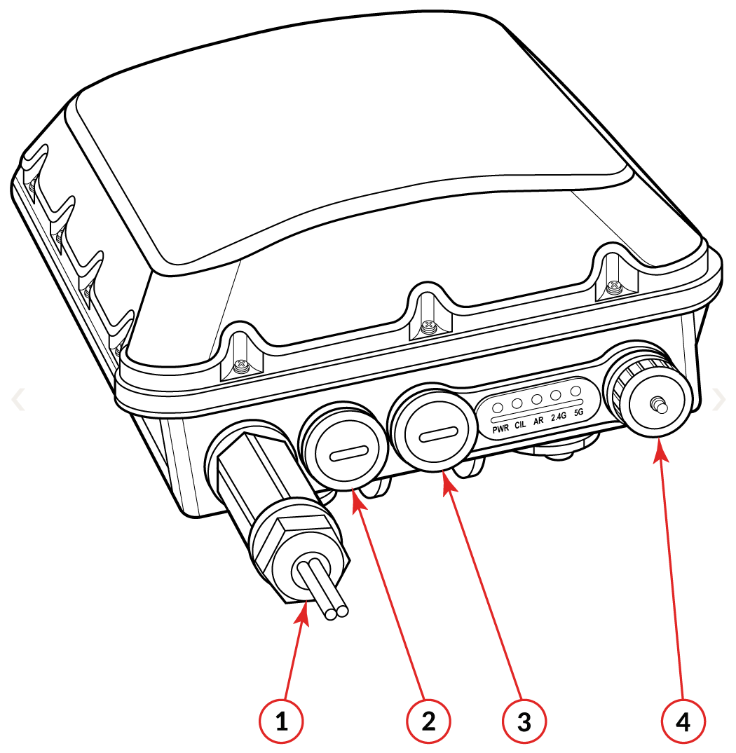
- SFP port
- PoE IN
- PoE OUT
- AC port
Front Panel
The T750SE AP features five LEDs on its front panel.
| LED | Status | Description |
|---|---|---|
| PWR |  Off
Off |
No power connected. |
| PWR |  Solid Red
 |
Boot up in process. |
| PWR |  Flashing Green
 |
System started, no routable IP address detected. |
| PWR |  Solid Green
 |
Routable IP address received. |
| CTL |  Off
Off |
Unleashed Member AP. |
| CTL |  Flashing Green (slow, every 2 seconds)
 |
Network problem. Cannot contact Unleashed Master. |
| CTL |  Flashing Green (fast, 2x per second)
 |
Receiving configuration or image upgrade. |
| CTL |  Solid Green
 |
Unleashed Master AP. |
| AIR |  N/A
N/A |
No upstream mesh connection (Root AP). |
| AIR | 
|
Upstream mesh connection established (Mesh AP). |
| AIR | 
|
Upstream mesh connection issue. |
| 2.4G |  Off
Off |
Radio is down. |
| 2.4G |  Amber (solid)
 |
Radio is up, no clients are connected to the 2.4 GHz radio. |
| 2.4G |  Solid Green
 |
Radio is up, at least one client is connected to the 2.4 GHz radio. |
| 5G |  Off
Off |
Radio is down. |
| 5G |  Amber (solid)
 |
Radio is up, no clients are connected to the 5 GHz radio. |
| 5G |  Solid Green
 |
Radio is up, at least one client is connected to the 5 GHz radio. |
| 5G |  Flashing Green
 |
Radio is up, at least one downstream Mesh AP is connected to the 5G radio. |